 ClickTrek
A Steps Recorder alternative for tasks in your browser
Short answer: Microsoft has deprecated Steps Recorder (psr.exe) and says it will be removed in a future Windows release. Its suggested replacements (Snipping Tool, Clipchamp, Xbox Game Bar) take screenshots or video but don't build a numbered list of steps. If the task happens in a web browser, ClickTrek gives you the closest result: a numbered screenshot for every click, ready to share. For desktop programs you need a different tool.
What Steps Recorder did, and what ClickTrek does
| Windows Steps Recorder | ClickTrek | |
|---|---|---|
| Where it records | Any Windows program | Websites in Google Chrome |
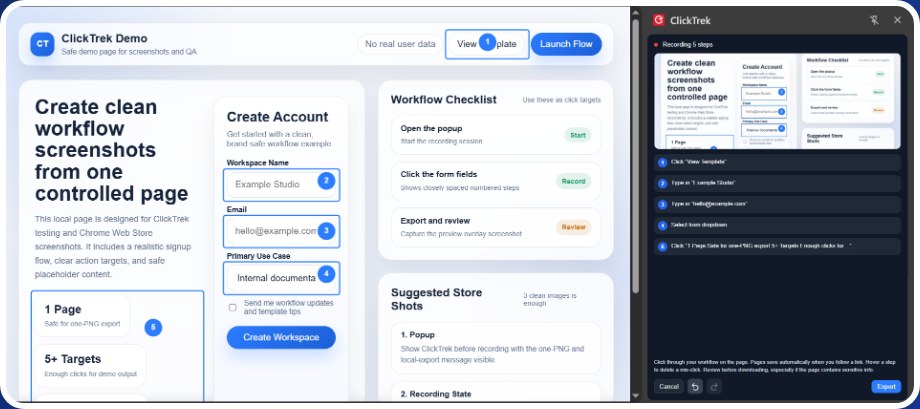
| What you get | A screenshot per step with an automatic text log, saved as an .mht file in a .zip | Annotated images with numbered badges and highlight boxes: one PNG per screen, or a .zip |
| Marks what was clicked | Green outline | Numbered badge and highlight box, adjustable before export |
| Step text | Generated automatically | Optional labels you type on the review page |
| Edit before sharing | Add comments | Remove pages, show or hide boxes, labels; crop and redact in Pro |
| Opens on any computer | .mht needs a compatible viewer | Plain PNG images |
Recording steps in Chrome with ClickTrek
- Install ClickTrek from the Chrome Web Store.
- Open the web page where the problem or task starts.
- Click the ClickTrek icon, then Start Recording, and go through the steps.
- Click Finish, check the pages, and download the images.
- Attach the PNG or .zip to your ticket or email.
When ClickTrek is not the right replacement
- The task is in a desktop program (Excel, an installed ERP client, Windows settings). ClickTrek records websites only.
- You need an automatic text log of every keystroke. ClickTrek produces pictures; step text is optional and typed by you.
- The page is one of Chrome's own pages or the Chrome Web Store, which extensions cannot record.
Many everyday tasks now happen in a browser. Record them as numbered screenshots, free and without an account.
Add ClickTrek to Chrome